Creating Schedules
Creating and Understanding Schedules with Cron Expressions
With our schedules feature, you can run a server command, power action, or backup at any set time. Using cron expressions, you can set the schedules to be executed at a certain time of day or every hour/minute/second. This tool is useful for automating backups or executing commands at set times without the use of plugins or mods.
We recommend checking out the Crontab Guru website for a list of cron expression examples.
Daily Backup Schedule Example
A commonly set up schedule creates a backup of the server every day. In this example, we will be creating a schedule that creates a backup at midnight every day.
First, log in to the control panel and click on your server to manage it.
Next, click on the Schedules tab. In the top right corner, click on Create schedule.
You will now see a pop-up that looks like this:
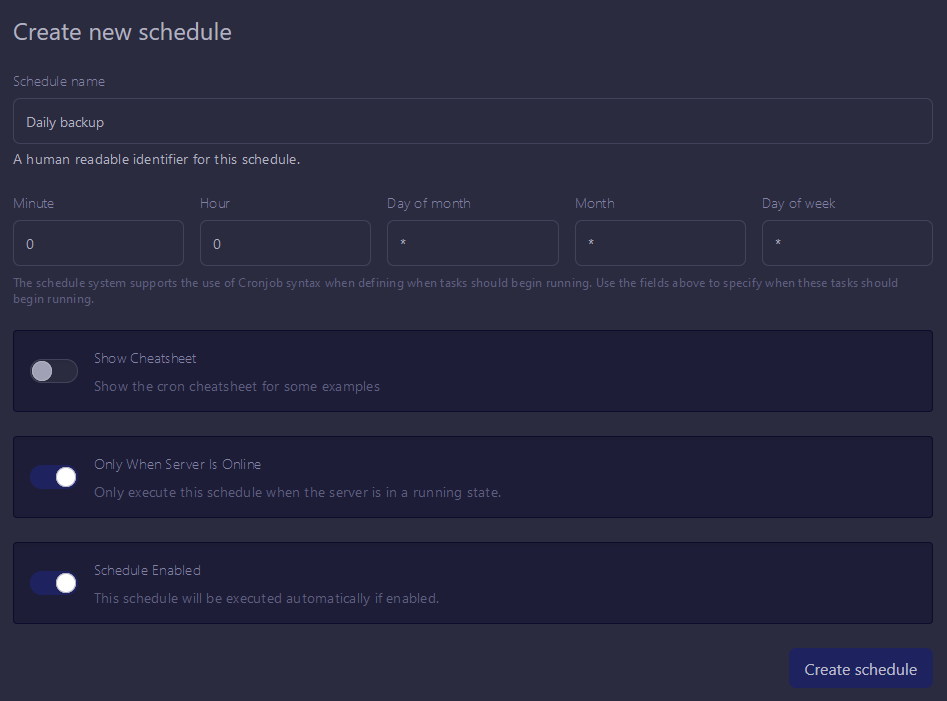
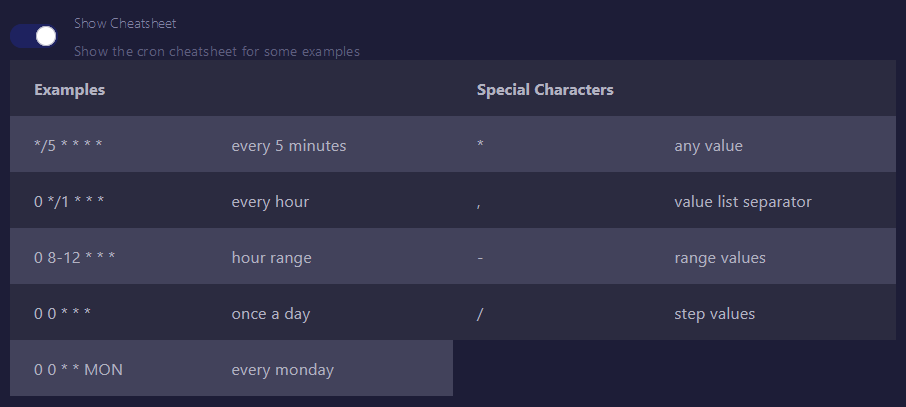
You can use the Show Cheatsheet toggle to see a few other examples of cron expressions you can use, and what each special character does.
Cheatsheet
You can also toggle Only When Server Is Online to decide whether backups will be taken even when the server is offline.
Schedules use the timezone set in Settings.
After setting up the correct cron expression for midnight (or however you desire), click on Create schedule. You have now created a schedule.
The next step is to create a task for the schedule to run. To do so, click on New Task in the top right corner

A new menu will pop up asking for the task arguments.
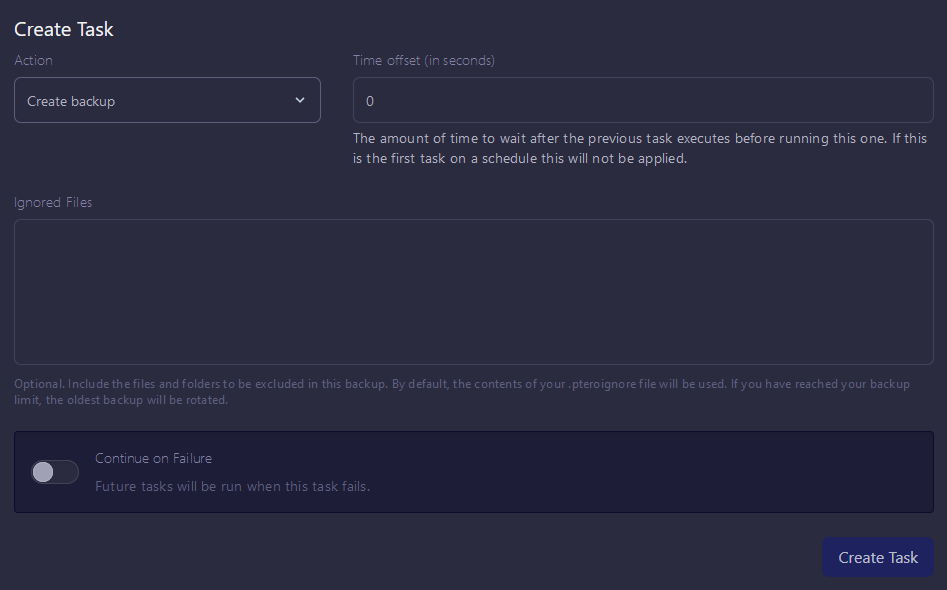
Create a task with the action Create backup. This will tell the schedule to create a backup.
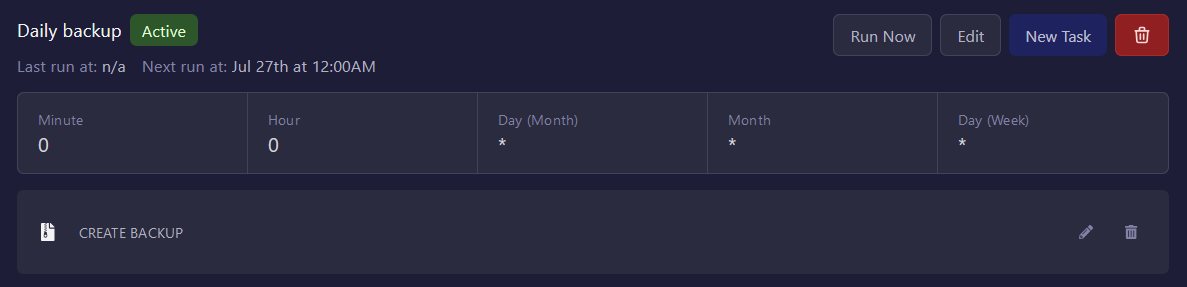
Once the schedule is complete, it should look like this:
When the backup action is called, your server will not be automatically stopped. This is because our panel's backup system uses a method that is very unlikely to corrupt your files when the server is running. Still, you may wish to add Send power action actions before (recommended at least 30s before) and after (recommended at least 60s after) the backup action, to stop and start the server, to completely prevent the possibility of file corruption, and because frequent restarting may be beneficial for your server's performance. We also recommend adding announcements that the server is being restarted using Send command actions that send the say command (or something else like the tellraw command or the broadcast command from EssentialsX, if you have it).
Example
In this example, we will be creating an announcement 60 seconds before the backup is taken.
Follow the previous example until creating the first task, which should be the one below:
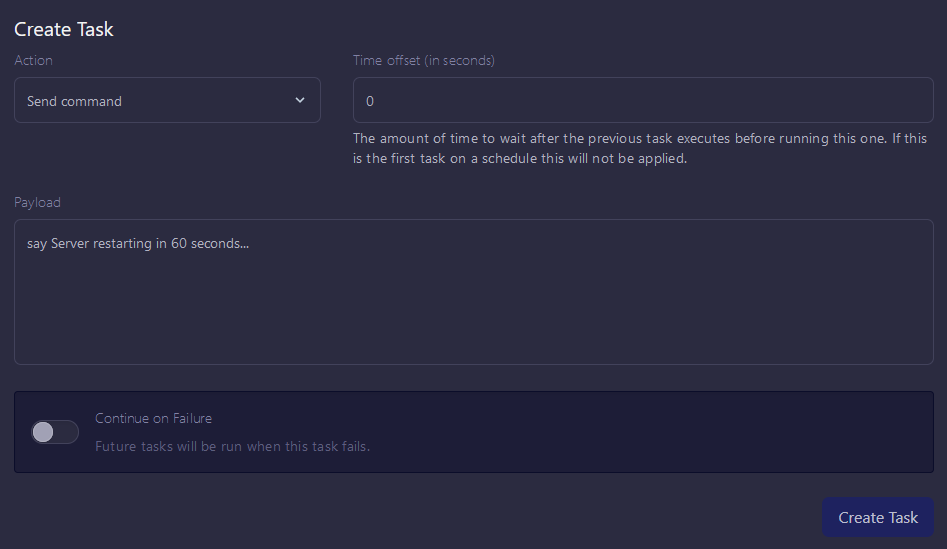
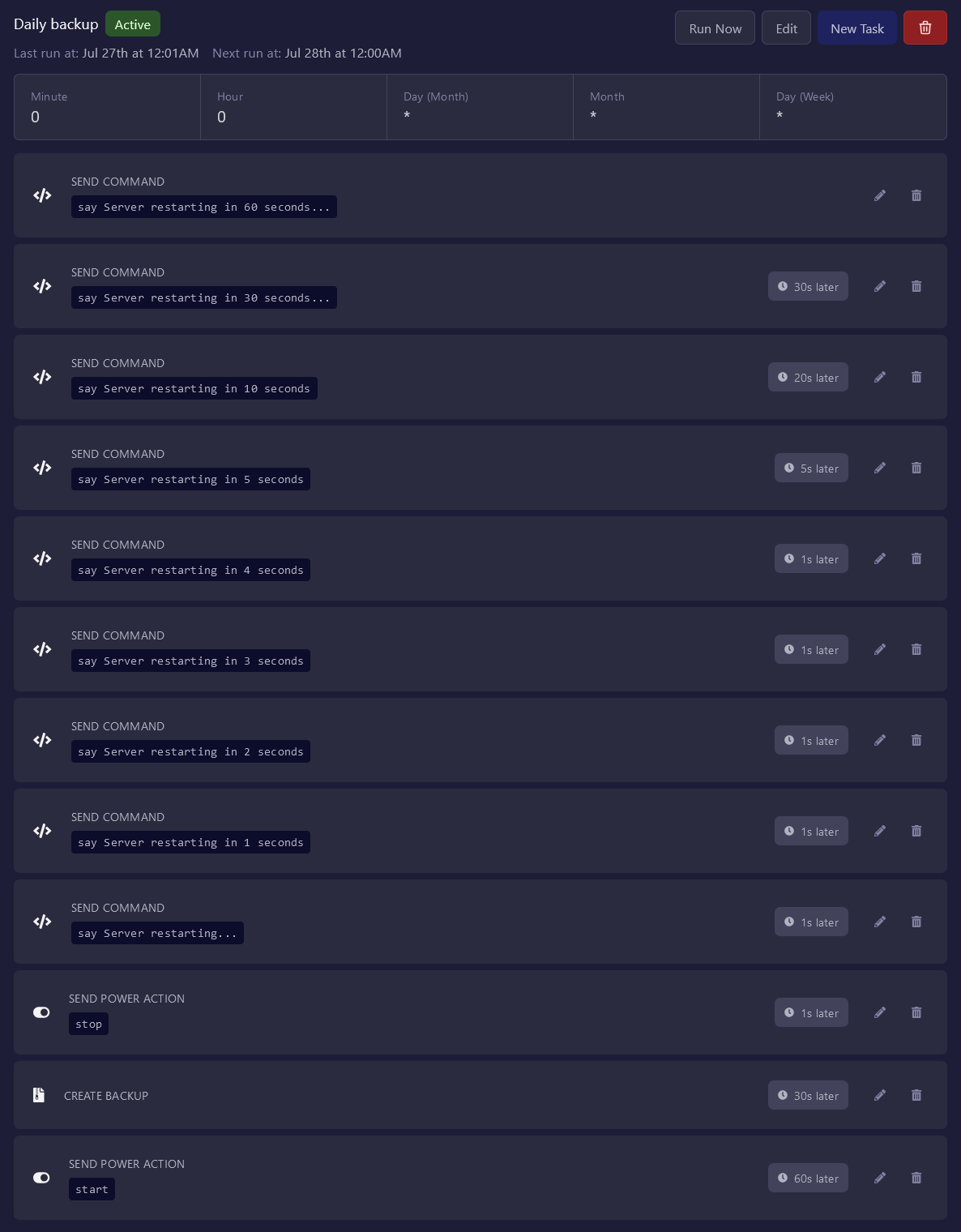
In the menu, make sure the action is set to Send command. The payload is the command that the schedule sends. In this case, we want the schedule to send a message to the server that the server will be restarting in 60 seconds. In the payload section, enter say Server restarting in 60 seconds.... The time offset for this task is 0 since it should be called as soon as the schedule is run.
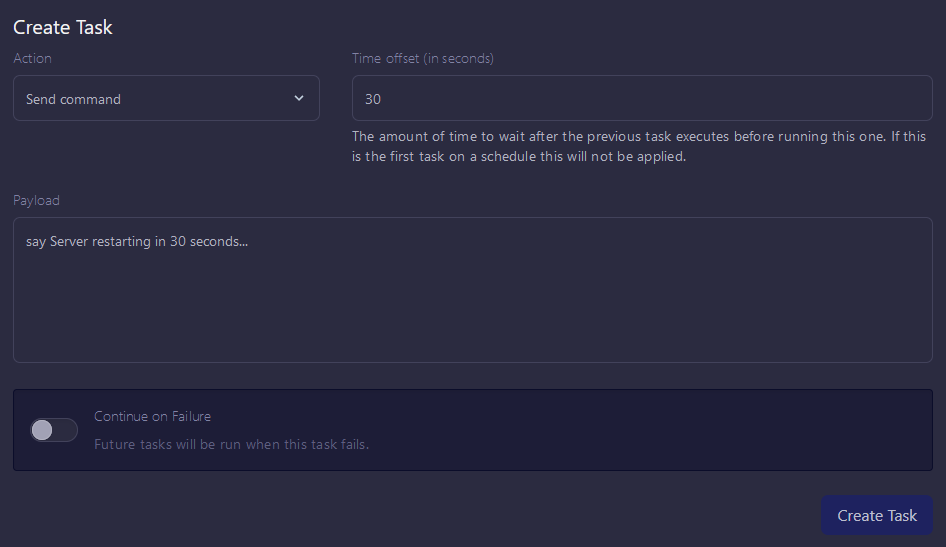
Next, create another task with the same action and with a new payload: say Server restarting in 30 seconds.... The time offset should now be 30 since the schedule is sending this command 30 seconds later.
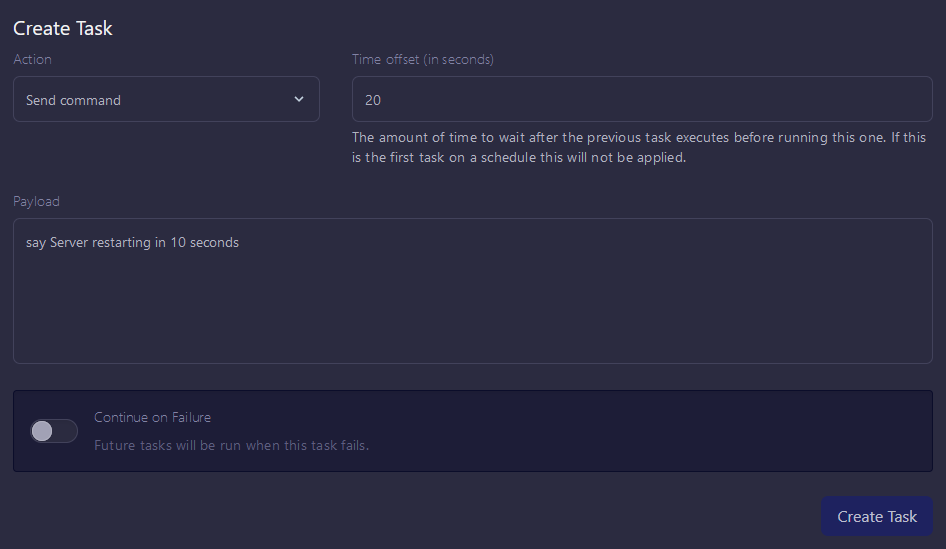
The next task is to announce that the server restarts in 10 seconds. The new payload command will be say Server restarting in 10 seconds with a time offset of 20 seconds. The time offset is 20 seconds since we must wait 20 seconds after the 30-second message is sent since we will now be counting down from 10 seconds.
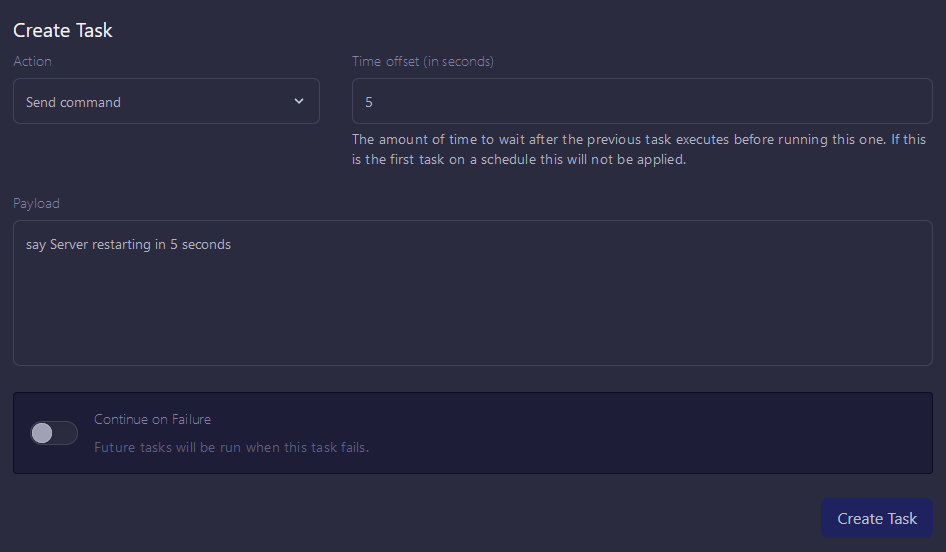
And now, the next task is at the 5-second mark. Payload: say Server restarting in 5 seconds; Time offset: 5
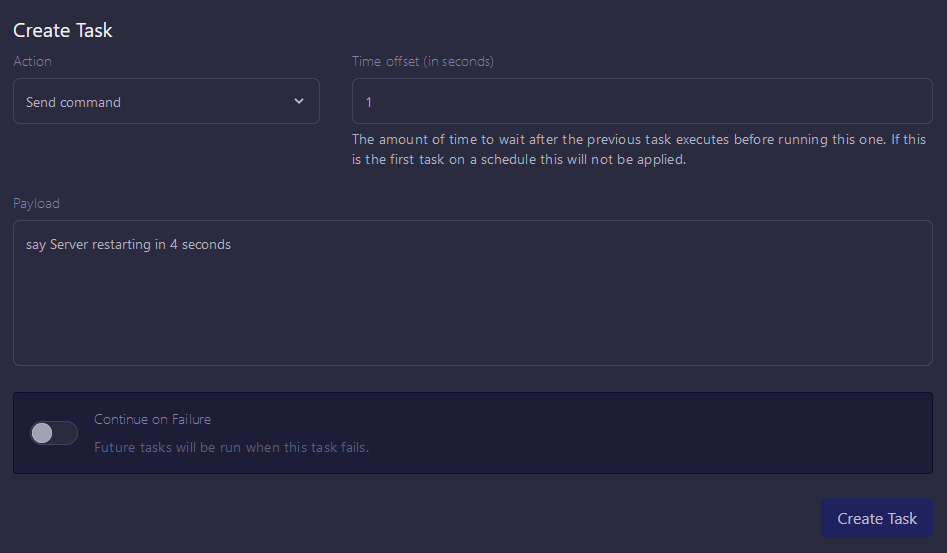
The task will now begin counting down from 5 to 1. Payload: say Server restarting in 4 seconds; Time offset: 1
Repeat this step 3 more times for 3, 2, and 1. The time offset is still 1.
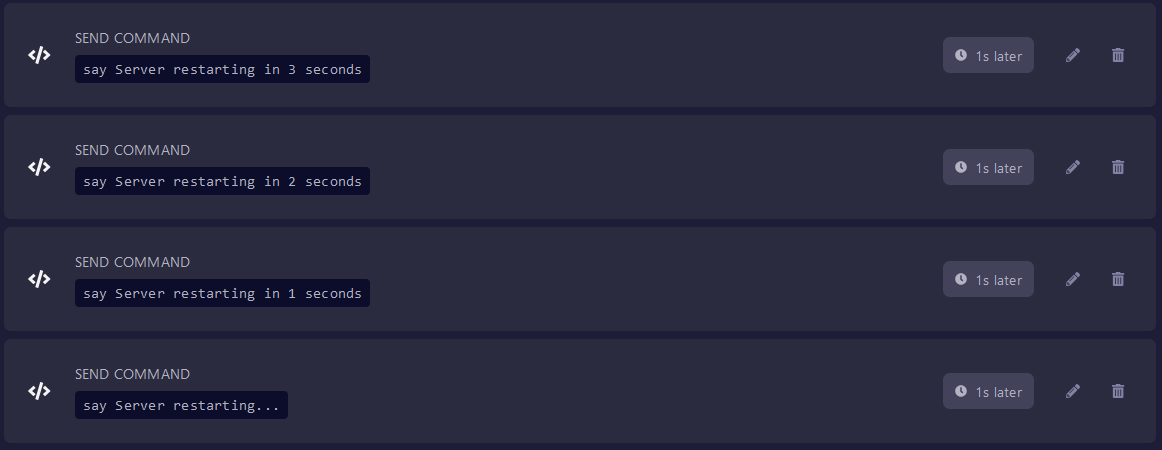
The last message that the server sends should be the restart announcement. Here, the payload is say Server restarting...
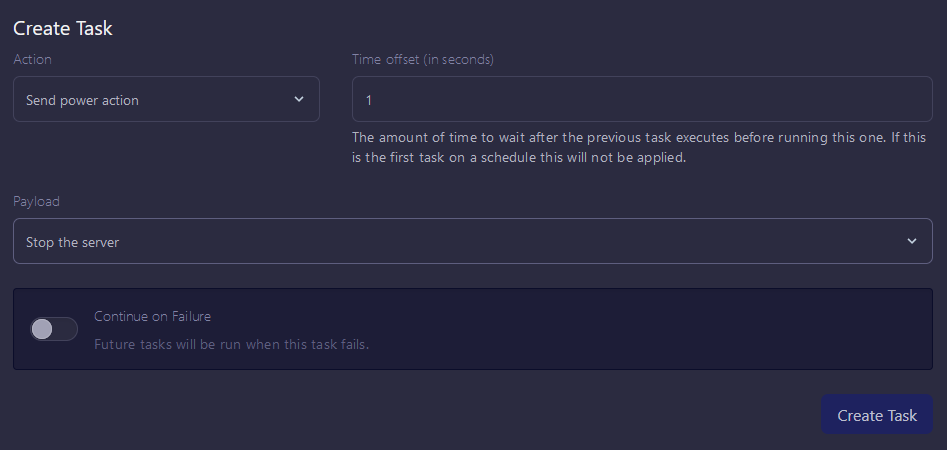
To stop the server before the backup, add a task with the Send power action action, with the payload: Stop the server. Time offset: 1
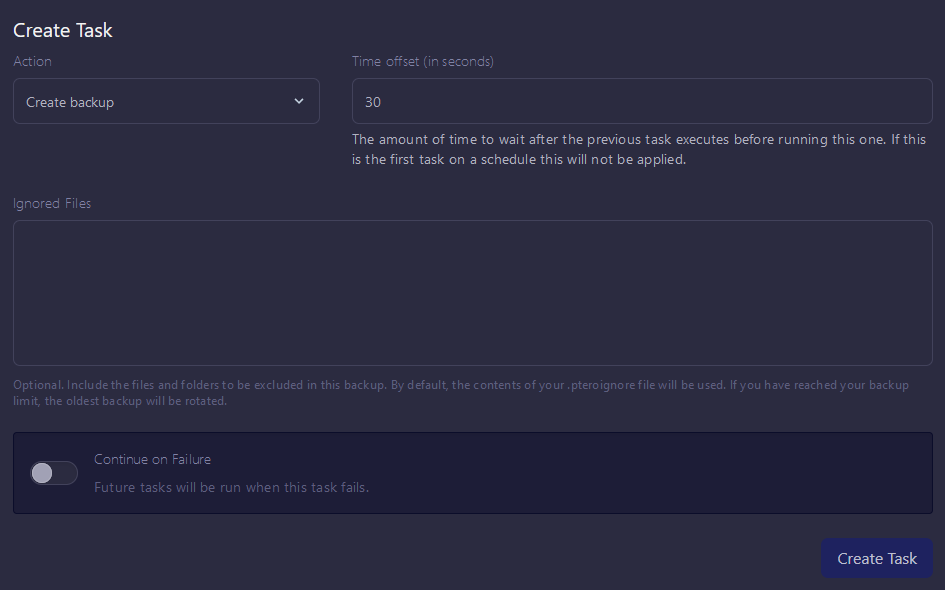
After that task, create a task with the action Create backup. This will tell the schedule to create a backup after all the messages have been sent. The time offset should be at least 30 seconds.
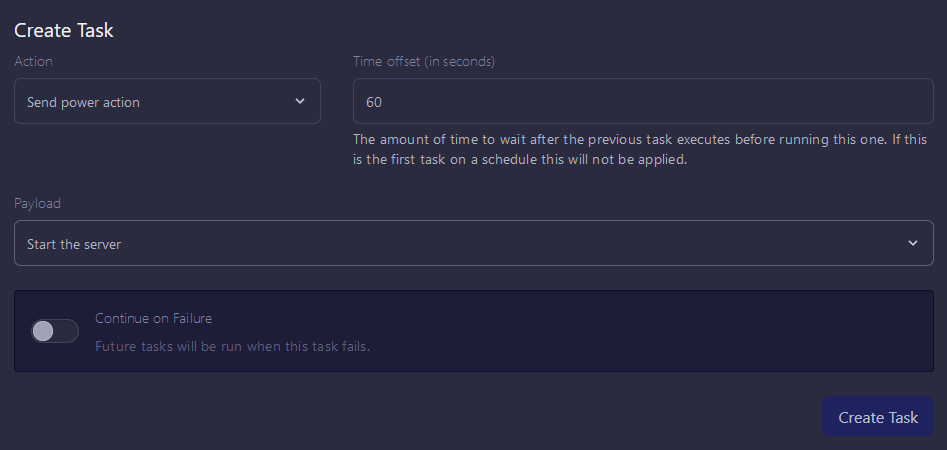
To start the server after the backup, add a task with the Send power action action, with the payload: Start the server. The time offset should be at least 60 seconds.
Once the schedule is complete, it should look like this:
You can have a maximum of 25 actions in one schedule.
You are welcome to change the schedule however you'd like. If you need any additional help with schedules or have any questions, feel free to contact our support team!